 DeDuplicate
How to remove duplicate files from your cloud storage
Step by step, from installing the app to getting back a file you changed your mind about. The page of each service tells what is particular to it.
Install the app
Download DeDuplicate from your device’s app store: the App Store for iPhone, iPad and Mac, Google Play for Android, the Microsoft Store for Windows. The download page links to each one.
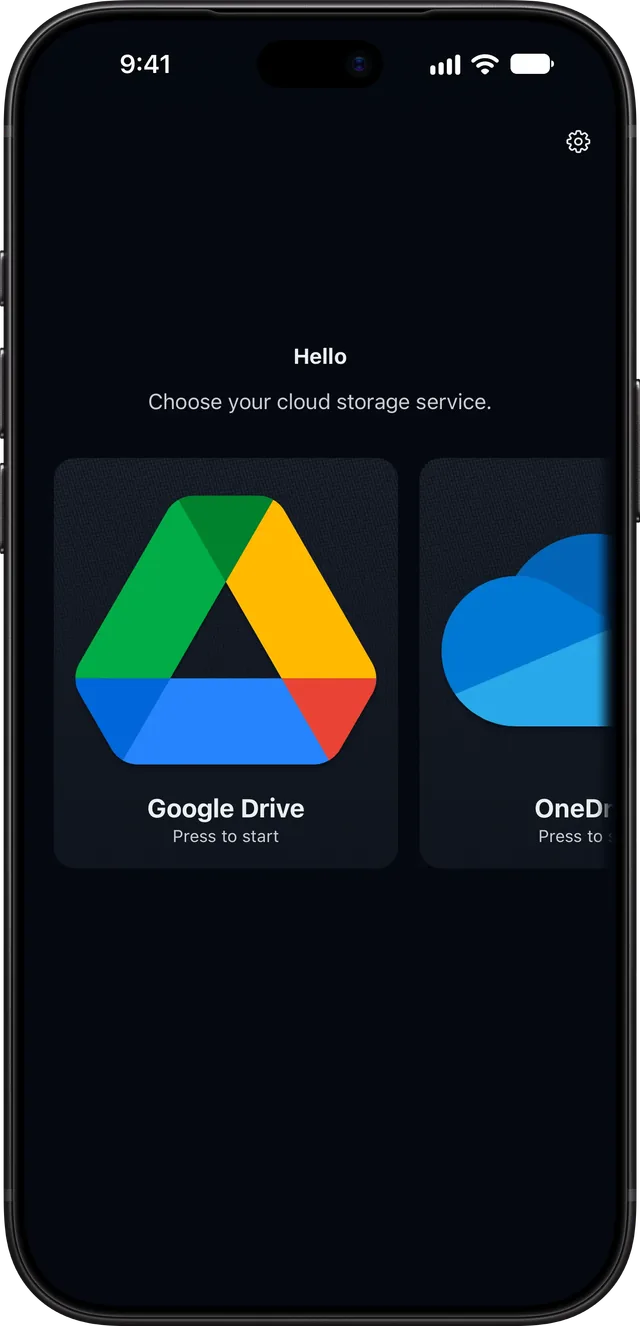
Sign in to your cloud
Open the app, choose your cloud service and sign in. For most services you sign in on the service’s own page, in your browser: the app never sees your password and only receives the permission to work on your files. MEGA has no such page, so you enter your email and password in the app, which signs in with them without saving them.
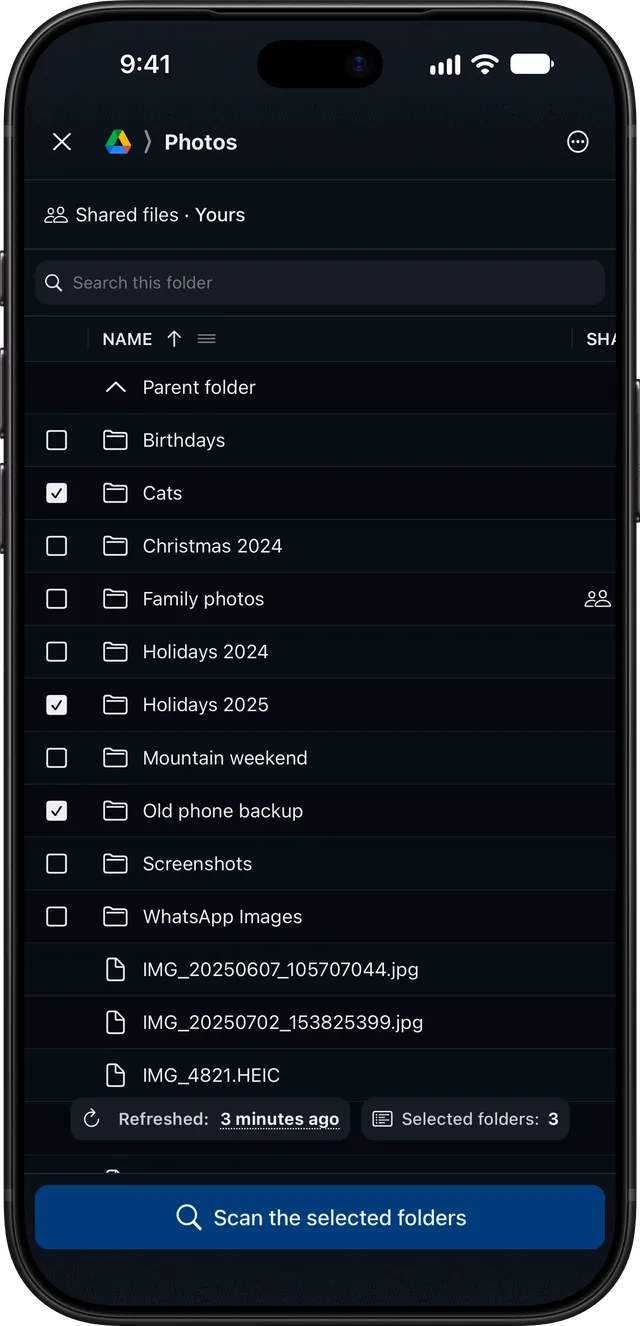
Choose where to look
Scan the whole drive or just a few folders, and choose whether to include the files shared with you and, where your service has them, the app folders. Then start, and wait for the scan to finish: no file is downloaded, which keeps it quick.
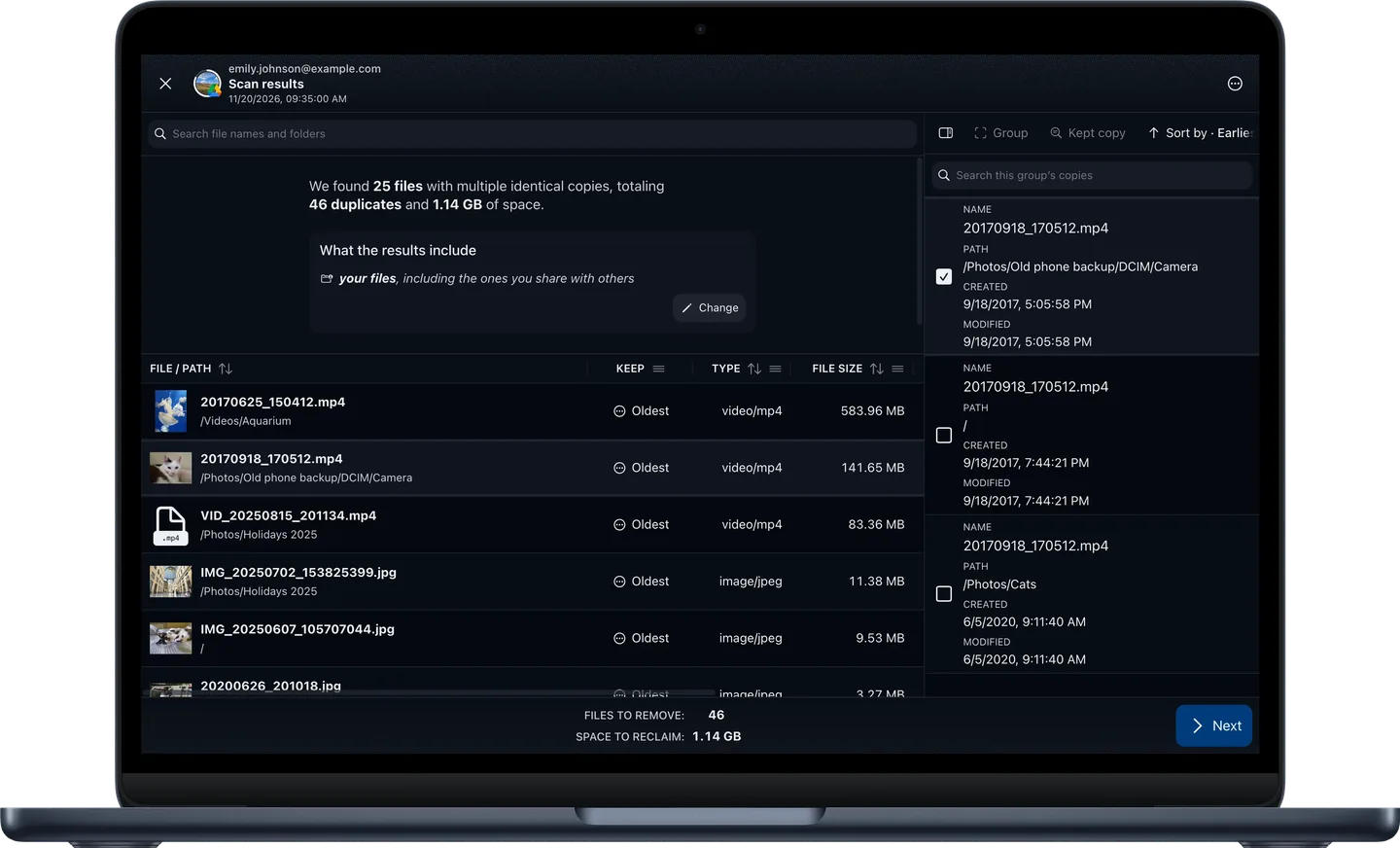
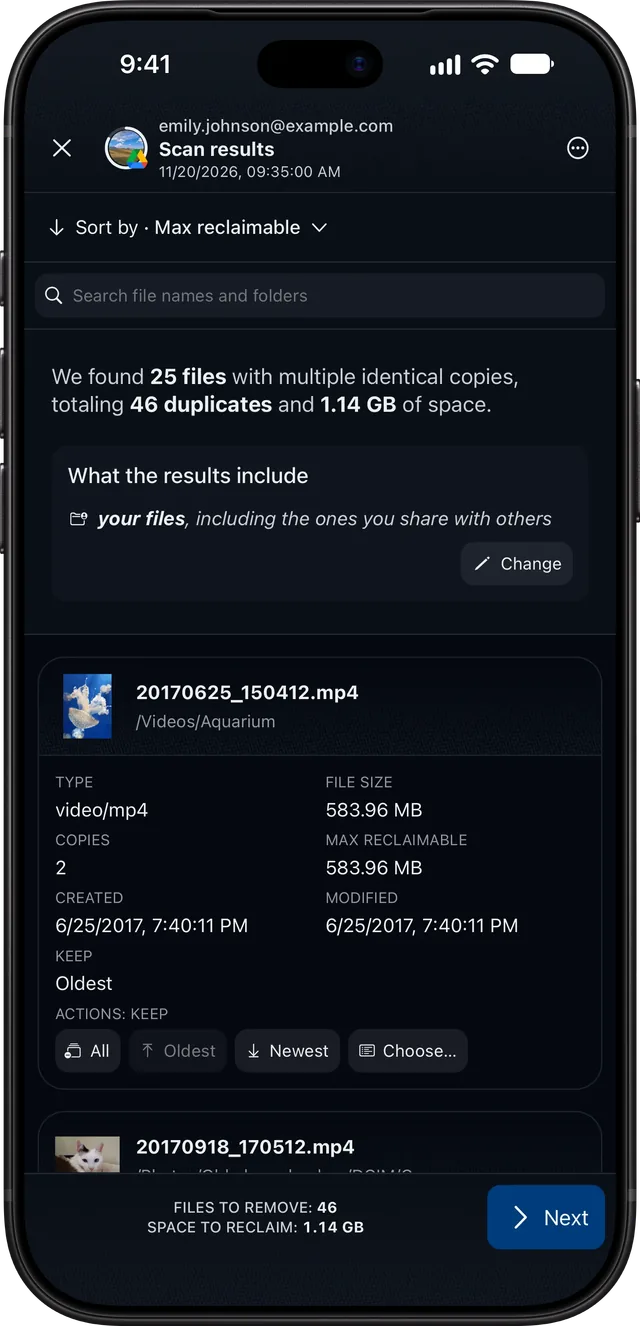
Decide what to keep
You get the list of the duplicates found, in groups of identical files, and nothing has been deleted yet! In each group the app proposes a copy to keep: choose another if you prefer, or keep them all.
Check, then confirm
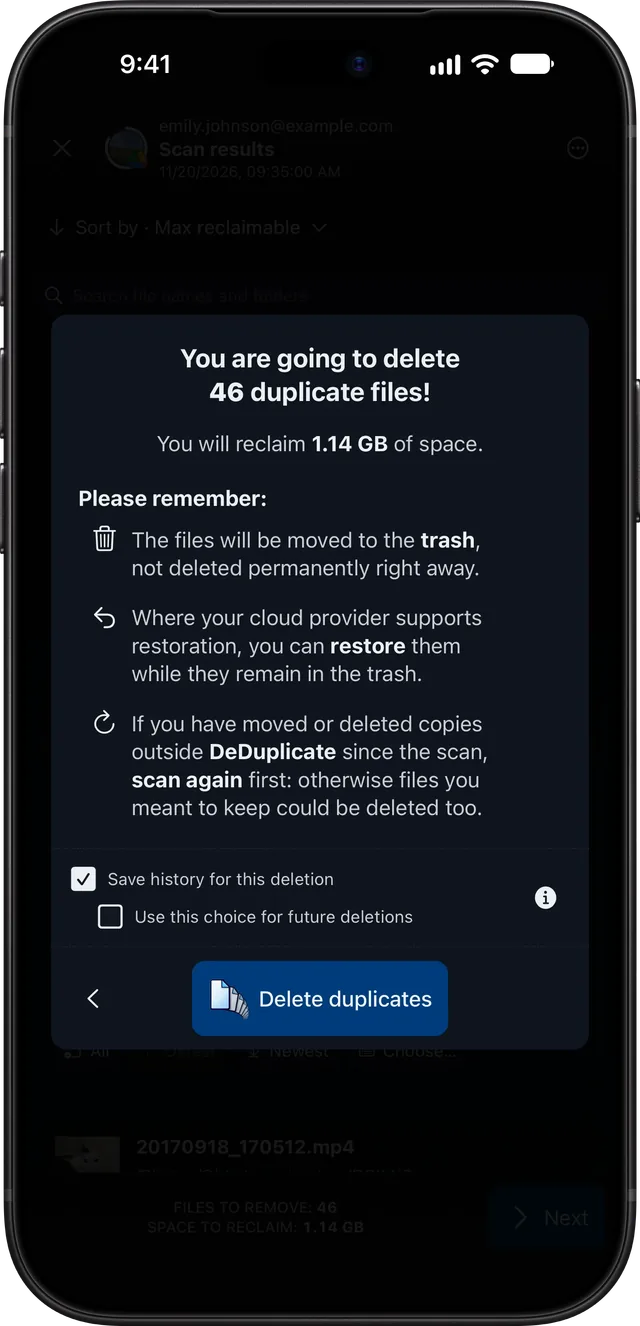
A summary shows how many files will be removed and how much space you get back. Confirm, then wait while the app moves the extra copies to your cloud’s trash.
Check History
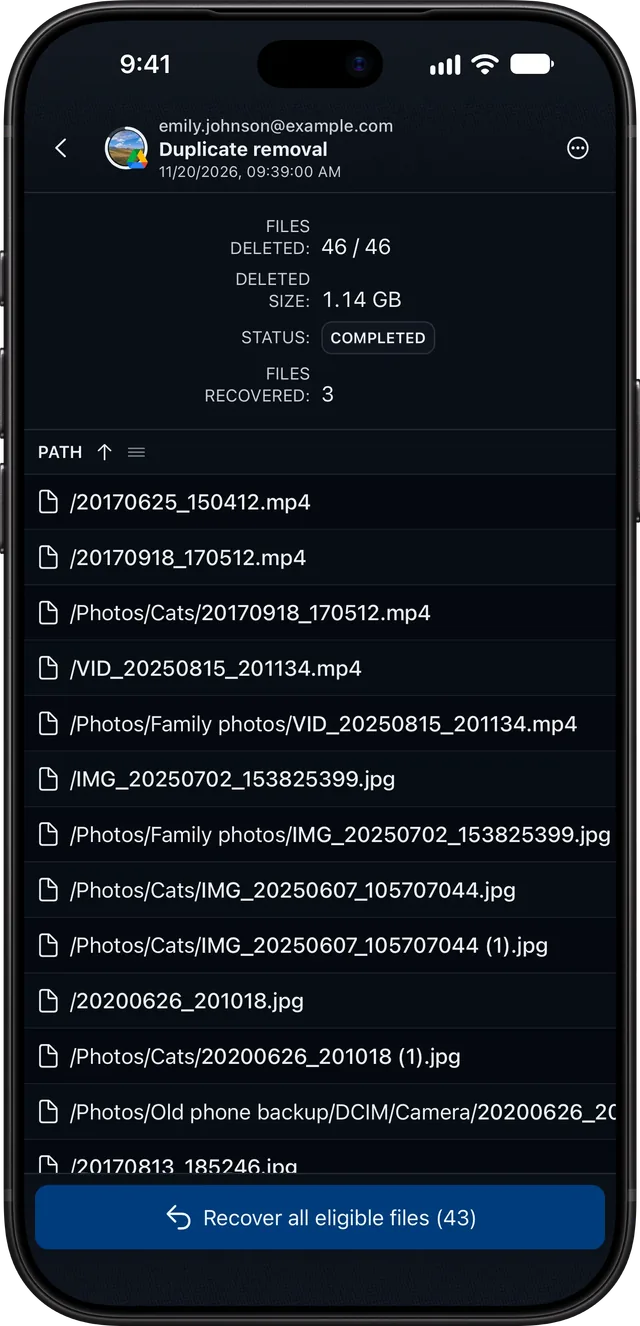
History lists every file each deletion removed. Changed your mind about one? Where your service allows it, you can restore it from the app; otherwise, get it back from the trash on your service’s website or app.
Come back anytime
Duplicates build up again over time: scan again whenever you like. Have a question? The FAQ may already answer it, or write to me. And if DeDuplicate helped you, a review on the store helps a lot. Thanks!